Showing posts with label internet. Show all posts

20090203

Coverting Webpage to pdf

PrimoPDF is a website where you can convert a webpage to pdf. What a useful tool! What you need to do is jst to past the link of the webpage, and the pdf file will be sent to your email quite instantly (I tried it a few times, and it took less than 3 minutes for the file to reach my Gmail inbox!).

These are the steps and details:
  1. Go to PrimoPDF.
  2. Enter you email address.
  3. Choose if you want to convert a file or an url.
  4. Done!


PrimoPDF is also capable of converting more than 300 file types to pdf files. Powerful indeed!!


Hope this article helps you.

by.Toyang Qren
More articles on another Toyang Qren's blog.

20080729

Internet: Find IP Address

3 Simple Ways Finding your IP Address

In case you are wondering what IP address is, the following are the definitions by Microsoft and Wikipedia respectively:

Short for Internet Protocol address. An IP address identifies a computer that is connected to the Internet or a network. An IP address usually consists of four groups of numbers separated by periods, such as 192.200.44.69.
An Internet Protocol (IP) address is a numerical identification (logocal address) that is assigned to devices participating in a computer network utilizing the Internet Protocol for communication between its nodes. The role of the IP address has been characterized as follows: "A name indicates what we seek. An address indicates where it is. A route indicates how to get there."

Have you ever wondering what your IP address is? IP address is getting more and more important in the Internet nowadays. For instance, your IP address is what Google will see if you try to click you Adsense ads by yourself, and it is what Google use to get you banned!

So, to find your IP address, here are 3 simple ways to do just that.

Control Panel

As I am using Vista, the first method is based on Vista system (Xp users read second method). Here are the steps:
  1. Go to Control Panel, Open Network and Sharing Center.
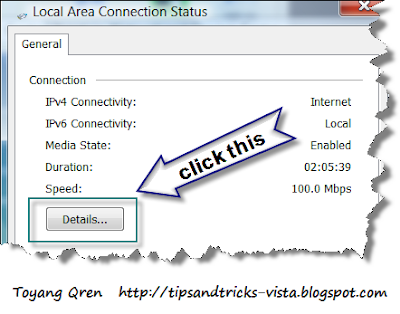
  2. Under Connection, click View status.
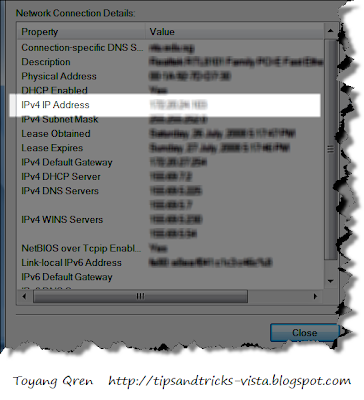
  3. Click Details. Your computer's IP address appears in the Value column, next to "IPV4 IP Address."
Using Command: IPconfig

This method can be used for both vista and xp. However the images you will see are based on Vista as I captured the pictures when I am running Vista.

So, this is the how-to.
  1. First, open Run from your Start Menu. (tips: you can search it first using search box, this is why vista is powerful in searching files inside you computer).
  2. Type cmd.
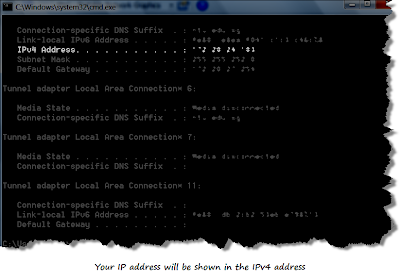
  3. A black window will appear. Relax, you are not messing up your computer, what you need to do is to type: ipconfig.
  4. You will see you ip adress under ipv4 (for vista).
Google Desktop

If you have installed Google Desktop from Google, then I believe this is the easiest way to find your IP address. This is so as there are one or two gadgets that once added to your sidebar, will immediately show the IP address of you computer. Fast isn't it?
  1. If you do not have Google Desktop, you can download it here.
  2. Open you sidebar if you dont start it at the start up.
  3. Add gadget to you sidebar by clicking the + button on top of your sidebar or by clicking the gadgets tab on your task bar, then click Add gadgets. Then a new window listing variety of gadgets will be displayed.
  4. Then search for IP address, and you will see this window. Click the one you want to add to your sidebar.
  5. Once added, you will see the gadgets on your sidebar. The image below is what I have when I choose the first gadget.

Hope this helps.

20080717

Internet: Enable Disable Cookies

How to Enable or Disable Cookies

Well, I thought this topic is a must-know ana rather basic for all computer users. However, I found this kind of question in YahooAnswer often enough. Therefore, I will share it with you here.

Well, what are Cookies actually? Here is a brief description of Cookies from Wikipedia:

Cookies are used for authenticating, session tracking (state maintenance), and maintaining specific information about users, such as site preferences or the contents of their electronic shopping carts. The term "cookie" is derived from "magic cookie" a well-known concept in UNIX computing which inspired both the idea and the name of HTTP cookies.

So, I think it is quite self-explanatory. Get back to the topic. To enable cookies, you need to follow the procedure in you browser you're using. (Yes, different browsers have different way of doing this).

Here are the details (I only include Firefox and IE, as these are the popular browser up to date):


Internet Explorer 7

  1. Open your IE7 from your desktop (or any way possible to get the page open, quick launch? keyboard short cut?)
  2. Go to Tools
  3. Choose Internet Options
  4. Click Privacy
  5. Move the slider to the bottom
  6. Should read Accept All Cookies, then click Apply

Internet Explorer 6

  1. Open your IE6 from your desktop
  2. Go to the Menu at the top, then click Tools
  3. Choose Internet Options
  4. Click Privacy, then Advanced
  5. Click Override automaic cookie handling
  6. Click Accept under First-party Cookies
  7. Click Always allow session cookie
  8. Click OK, then Apply

Mozilla Firefox 2.0

  1. Open your Firefox
  2. Go to the Menu at the top, then click Tools
  3. Choose Internet Options
  4. Click Privacy
  5. Under Cookies, click Accept cookies from sites
  6. Click "OK"

Safari 2.0

  1. Open Safari
  2. Go to the Menu, click Edit
  3. Select Preferences
  4. Select Security
  5. Adjacent to - Accept Cookies: Select Always
  6. Close the window

Hope this mind map would help you better (tips: click on the image see it clearer).


Hope this helps.

20080714

Internet: Cool Trick Javascript

Simple Internet Trick

Well, this post is quite off from what I have been doing all these while. This is a cool trick that you have to try when you have nothing to do or just feel bored.

Here is the instruction video.


So, lets recap.

  1. You need to open any website. (tips: the more the images, the better it is).
  2. Then you just need to copy the the JavaScript below, and paste it to the URL of the website.
  3. Press Enter and you will see the trick.
Tips: When I tried this for the first time using Firefox, it didn't work, so I thought this trick might not be compatible for the browser. However, apparently, thanks for my Metacafe viewer, if your Firefox is updated, you can use this trick using Firefox. IE works just fine.

Here is the Javascript. Just copy it and paste it in the URL.

javascript:R=0; x1=.1; y1=.05; x2=.25; y2=.24; x3=1.6; y3=.24; x4=300; y4=200; x5=300; y5=200;DI=document.images; DIL=DI.length; function A(){for(i=0; i-DIL; i++){DIS=DI[ i ].style;DIS.position='absolute'; DIS.left=Math.sin (R*x1+i*x2+x3)*x4+x5;DIS.top=Math.cos(R* y1+i*y2+y3)*y4+y5}R++}setInterval('A()', 5); void(0);

By the way, I don't create this JavaScript, all thanks to the creator, I just want to share this entertaining trick to my readers. Enjoy.