Clearing Past Searches in Google
I have been answering in Yahoo Answer for quite sometime now. As someone who thinks that I am only good at these computer stuffs, I usually answer in this category. When I browse through this category, I found that there are so many people asking about this topic, so I thought it would be great if I share this tips here.
Tips: You can clear your Google search history from the Google search box, the Google Toolbar, or your browser. I have included instructions for all three methods below.
If you aren't sure which box you'd like to clear, here is a picture for help.
- Browser History
- Search Toolbar History
- Search Box History
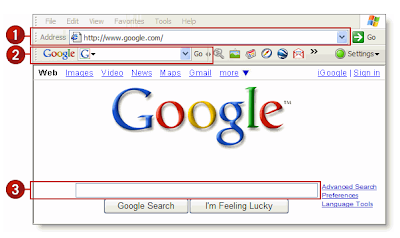
Here is the instructions...
Browser History
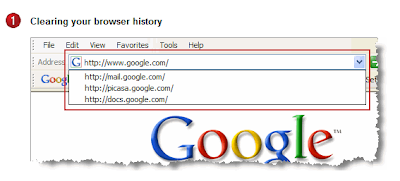 Like your Google search box history, the search history that displays in the address bar on the Google homepage is stored by your browser, not by Google. Instructions appear below for clearing and/or disabling your search history in common browsers.
Microsoft Internet Explorer
- Go to the Tools menu.
- Select Internet Options and the General tab.
- Click the Clear History button. To completely disable the history function, set Days to keep pages in history to zero ('0').
- Click OK to exit.
MSN
- If you're using the Microsoft Network (MSN), changes made in Internet Explorer (IE) will take effect in your MSN browser. After making changes in IE, you'll need to sign out of and back into MSN for the changes to take effect.
Mozilla Firefox
- Go to the Tools menu.
- Select Options > Privacy > History.
- Click Clear. To completely disable the history function, set Remember visited pages for the last X days to zero ('0').
- Click OK to exit.
Safari
- Click History on the top menu.
- Click Clear History at the bottom of the menu
Google Toolbar History
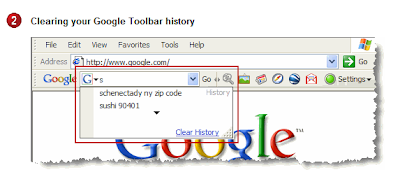 To clear your search history from the drop-down text box on the Google Toolbar:
 - Click on the Google logo on the Toolbar to access the drop-down menu.
- Select the Clear Search History option.
If you'd like to completely disable your Toolbar's search history, click the Options button on your Toolbar and un-check the box next to Drop-down search history.
If you have Google Toolbar 4.0 installed, you can clear your Toolbar's search history by starting to enter a search term in your Toolbar's search box. When your drop-down search history appears, simply click the Clear History link.
Tips: Please note that this only clears the search history from the Google Toolbar, which is entirely separate from the search history stored by your browser.
Search Box History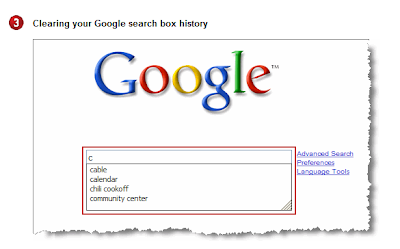 The search history that displays in the search box on the Google homepage is stored by your browser, not by Google. Instructions appear below for disabling this search history in common browsers. If your browser isn't listed, we suggest consulting its online support center.
Microsoft Internet Explorer
- Go to the Tools menu.
- Select Internet Options and the Content tab.
- Within the Personal information area, select AutoComplete.
- Click Clear Forms. You can also un-check the Forms box in this window to keep this information from being stored in the future.
- Click OK to exit.
Alternatively, you can delete individual entries from your search history by using the Down arrow key to highlight a previous search, then pressing the Delete key once.
MSN
- If you're using the Microsoft Network (MSN), changes made in Internet Explorer (IE) will take effect in your MSN browser. After making changes in IE, you'll need to sign out of and back into MSN for the changes to take effect.
Mozilla Firefox
- Go to the Tools menu.
- Select Options > Privacy > Saved Form Information.
- Click Clear and un-check the box.
- Click OK to exit.
Safari
- Go to the Safari menu and select Preferences.
- From the menus that pop up, select Autofill.
- Go to Other forms line and select the Edit button.
- From the list of sites for which AutoFill is currently being applied, select Google.com > Remove > Done.
Hope this helps.
Feel free to bookmark this article.


